Ad Naming Templates & Custom Columns
Build consistent ad names using templates powered by your sheet fields and Custom Columns. No spreadsheets or manual typing required.
Ad Naming Templates let you generate structured ad names automatically based on the data inside your Launch Sheet.
They combine two powerful concepts:
Templates that define your naming logic.
Custom Columns you create (e.g. Country, Offer, Funnel Stage, Creator).
Together, they replace external spreadsheets and help your team stay consistent across campaigns, markets, and clients.
Create a new template
You can create templates from two places:
From the sidebar:
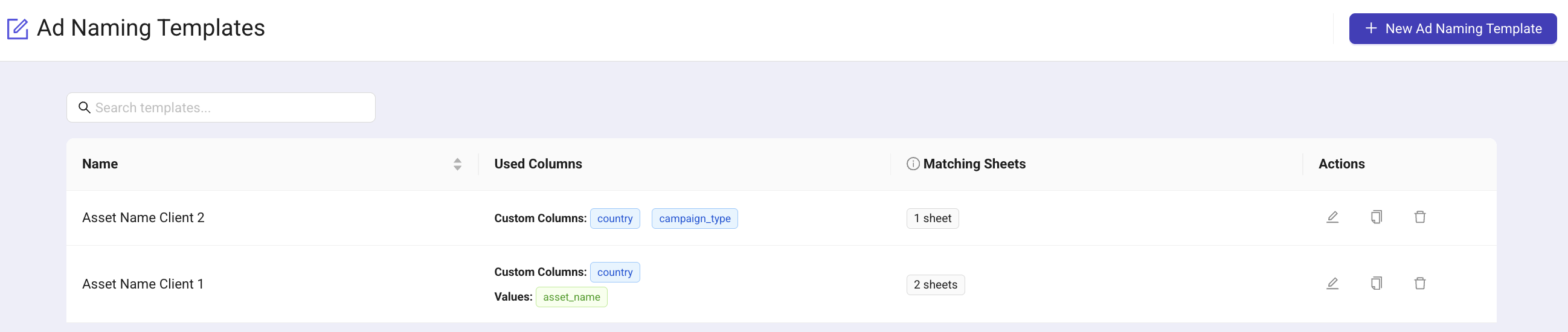
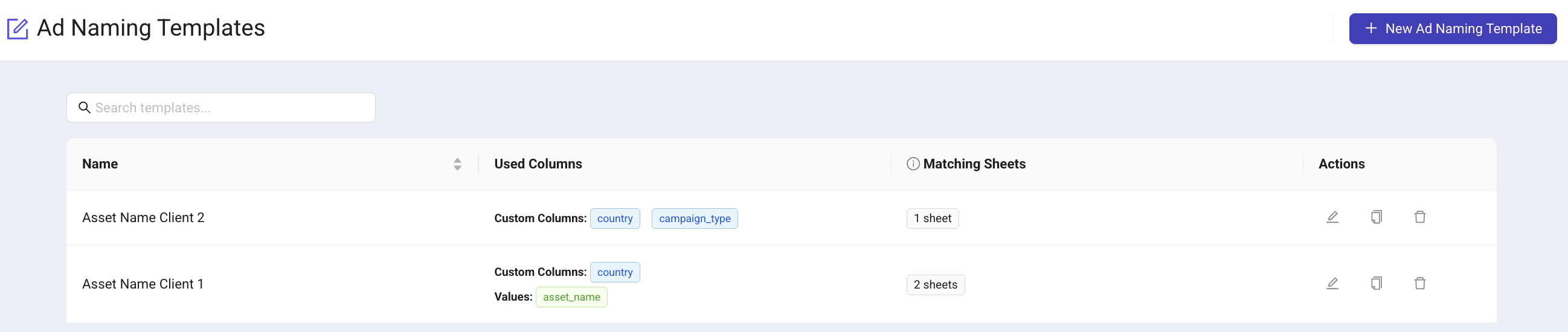
(all the ad naming templates will show up in this section).
Launch → Ad Naming Templates → New Template

When creating a template outside a sheet, you'll be asked to pick a sheet so Kitchn can load your Custom Columns and generate an accurate preview.
From inside a sheet:
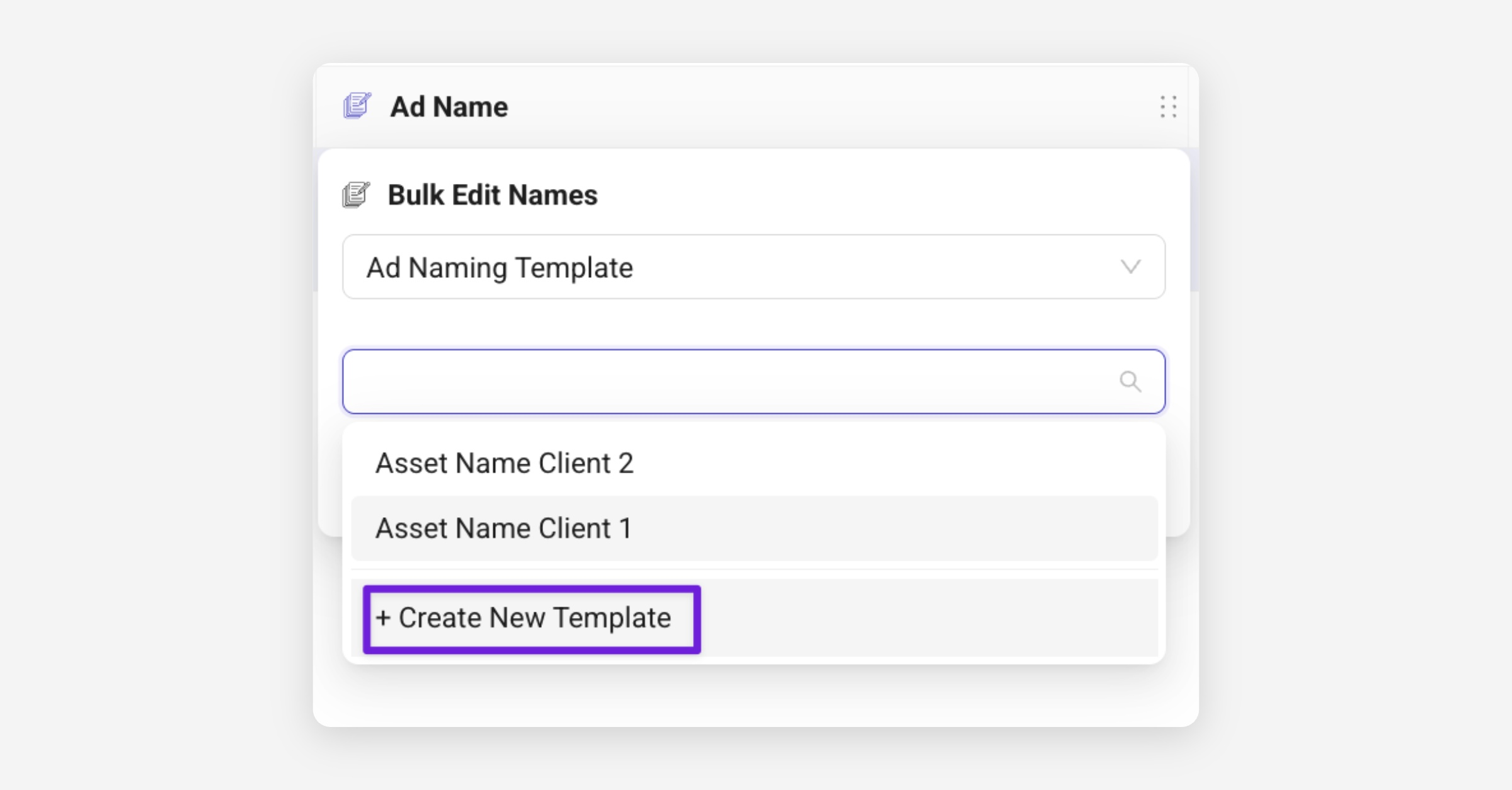
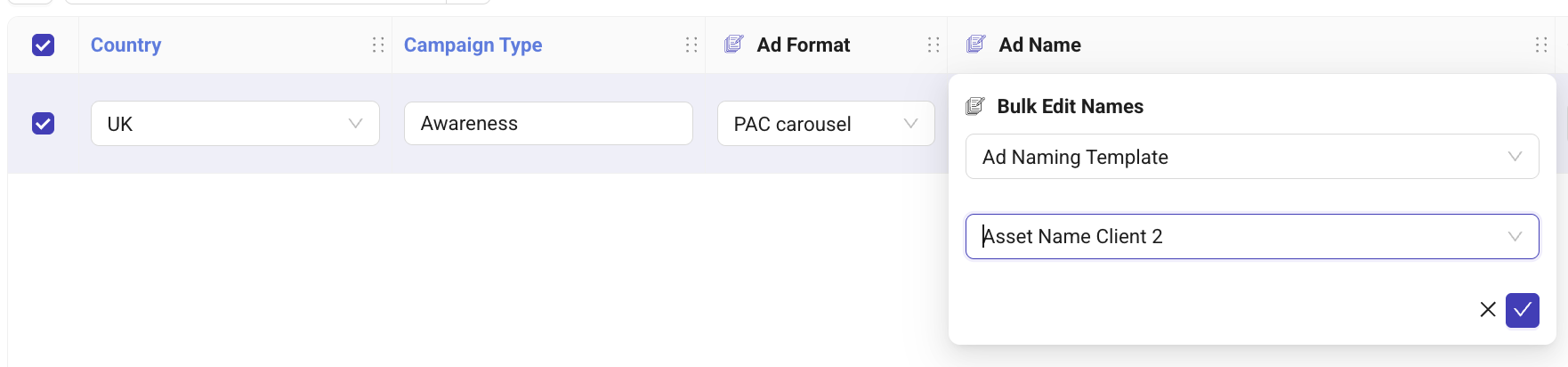
Click the Ad Name column header → Bulk Edit Names→ Ad Naming Template
Build your naming structure
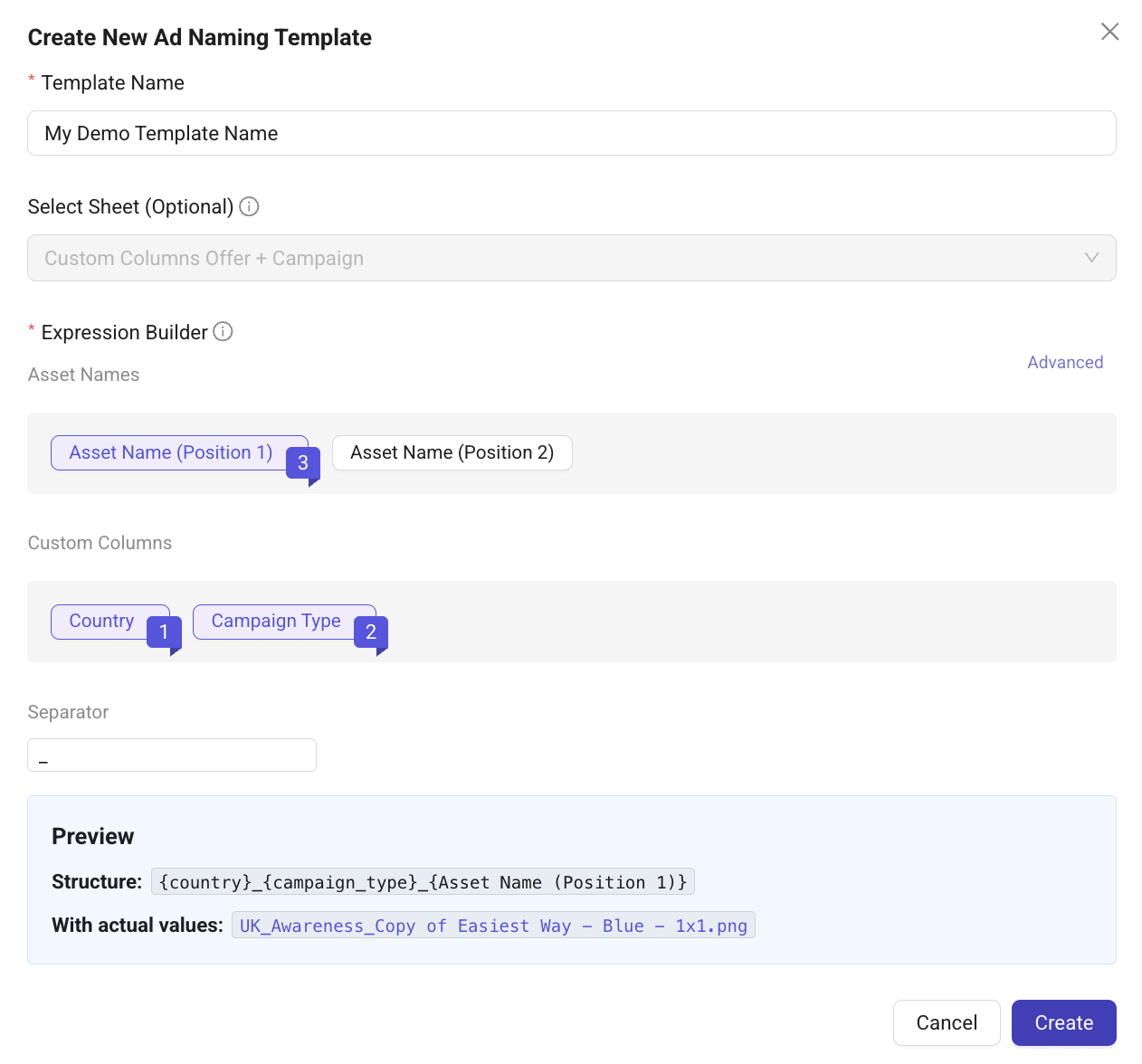
The template builder is flexible and easy to extend.
You can mix:
Variables from your sheet (Creative Name)
Any Custom Column (country, funnel stage, offer…)
Separators (underscore, dash, dot…)
Elements can be reordered at any time, and the final output updates instantly in the preview.
Add or edit Custom Columns
Custom Columns are key to building good naming rules.
They let you add your own fields to the Launch Sheet and use them inside your Ad Naming Templates. They are ideal for values like Country, Offer, Funnel Stage, Creator, Campaign Code and anything your naming structure depends on.
Custom Columns are managed directly inside the sheet. To open the Custom Columns panel, click the Column button at the top right of the sheet.

Then, click Create Custom Column.
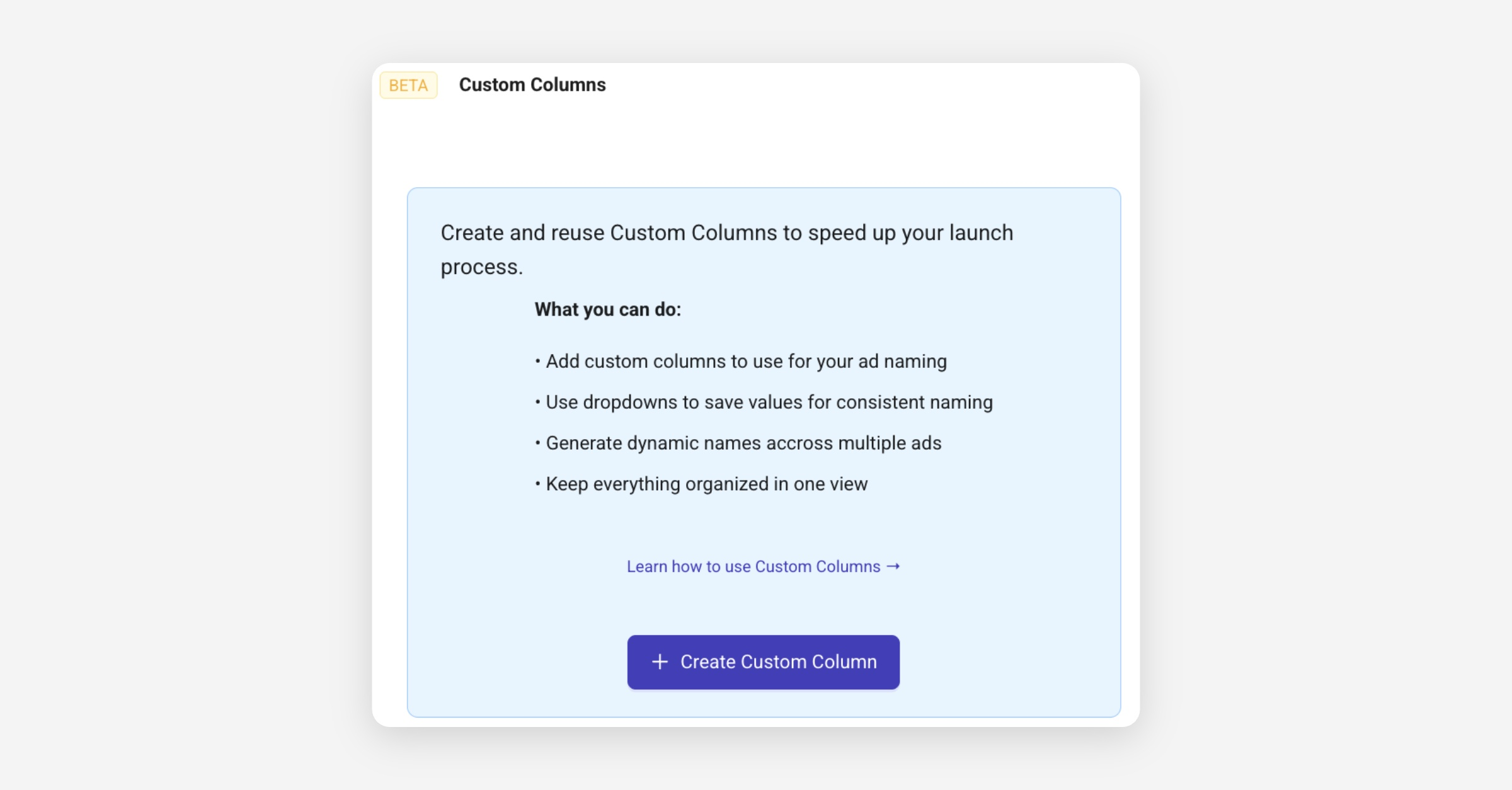
You can choose between:
Dropdown column – best for structured values such as countries, offers, funnel stages, or any category where you want consistency.
Freeform (text) column – best for values that change often or don’t require a predefined list.
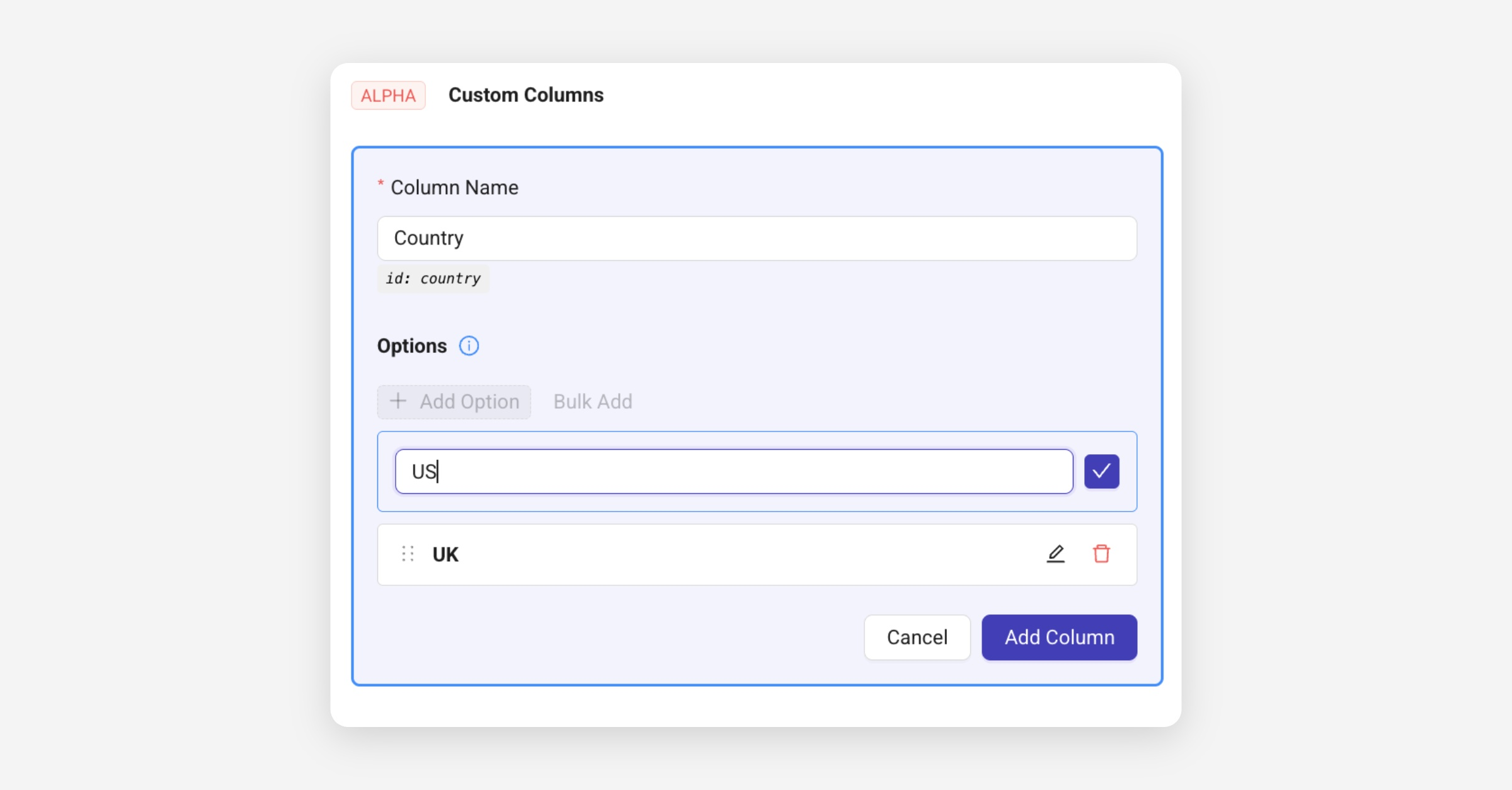
To create a dropdown column, name it and start adding options. You can add options one by one or in bulk.
As soon as you add options (e.g. UK, US), they appear in the Launch Sheet and your naming templates.
Tip: When filling a dropdown Custom Column in the sheet, you don’t need to reopen the Custom Columns modal to add new options.
Click the dropdown cell → start typing.
If the value doesn’t exist yet, an “Add…” option appears. Clicking it adds the new value immediately.
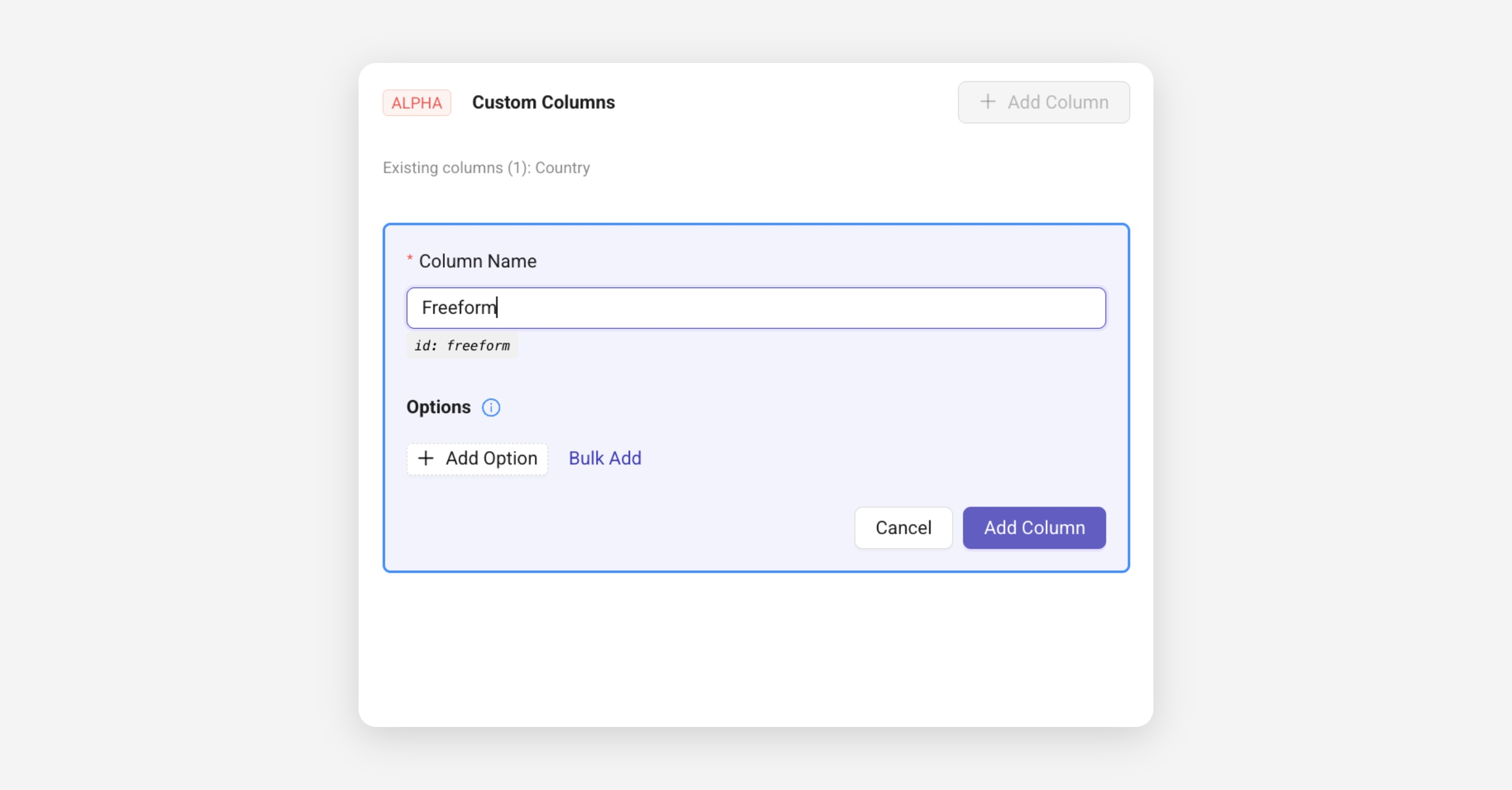
To create a text-style Custom Column, simply select the Freeform type. This creates a column where users can write anything, without predefined options.
Apply a Naming Template in Your Launch Sheet
Select one or multiple rows, open the Ad Name column header, choose Ad Naming Template, select your template and Kitchn instantly generates names based on the values in each row.
You can reapply a template anytime, names will update if Custom Column values or row fields change.

Manage Existing Templates
From the sidebar, you can access the Ad Naming Templates page, users can search, edit, update, duplicate, or delete a template. You can also see which Custom Columns each template uses.