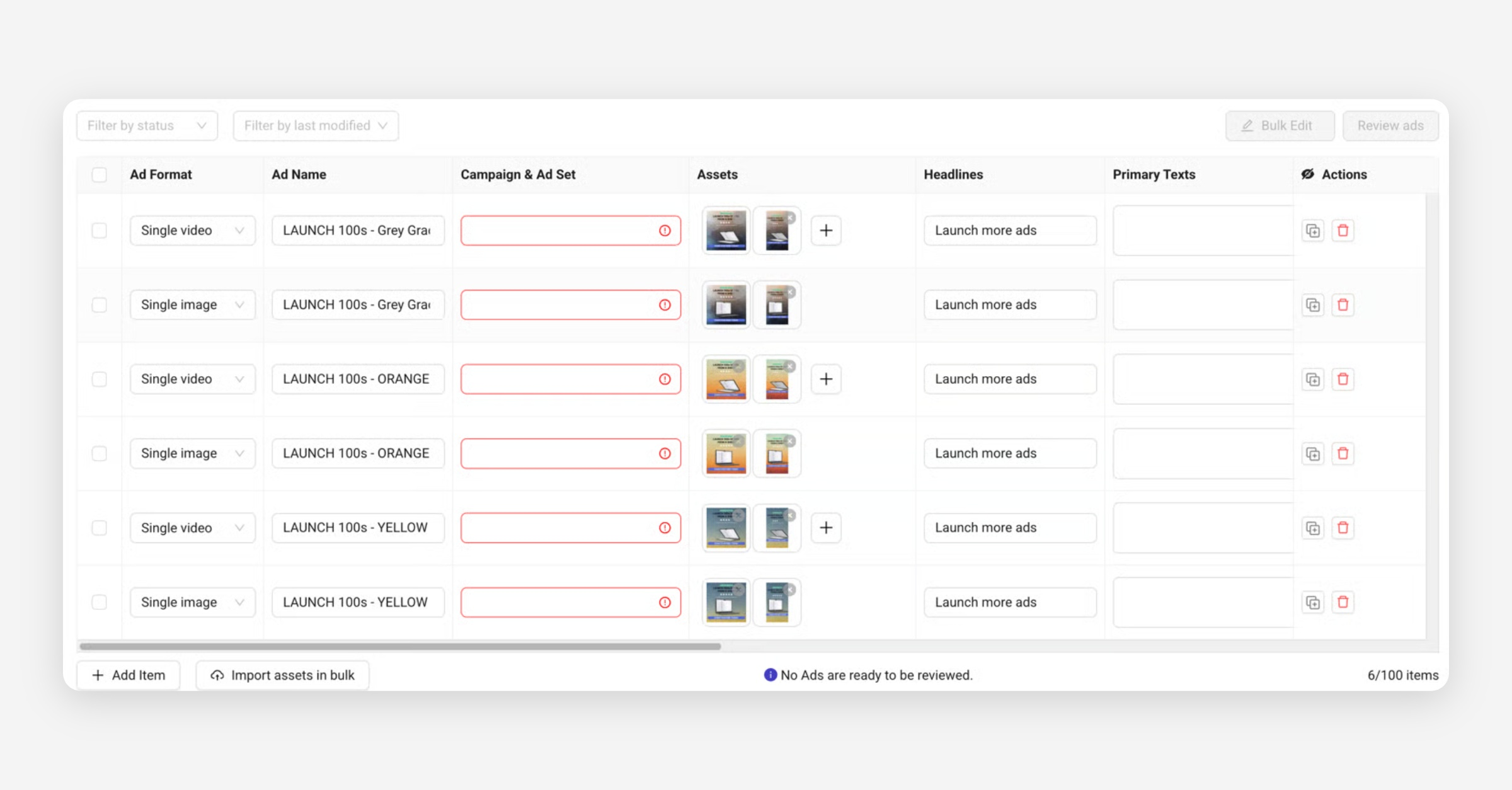
Fast Editing Options
Column Header Editing
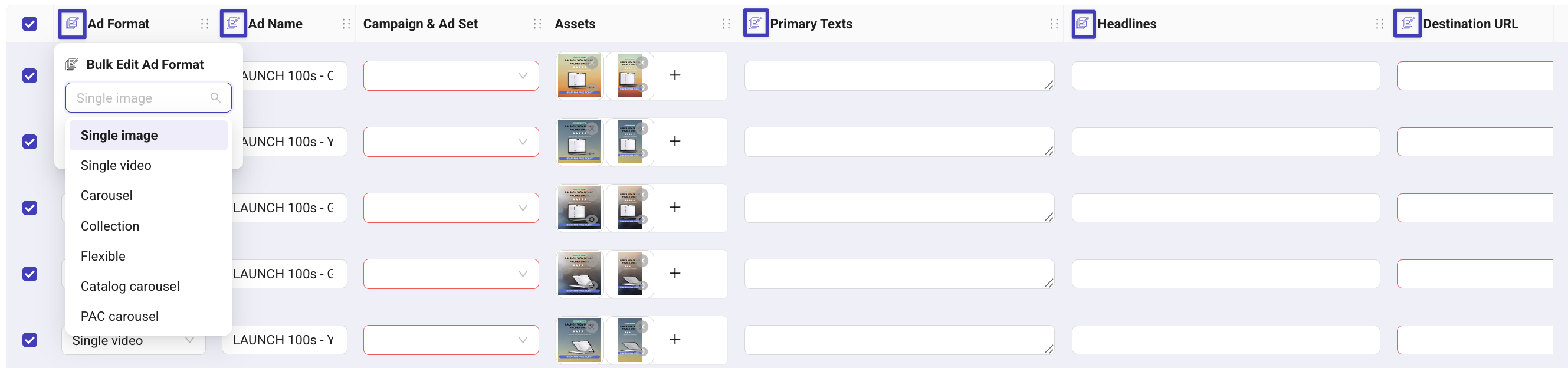
This is the fastest way to update multiple rows. Instead of using the old Bulk Edit panel, you can now:
Select several rows
Hover a column header
Click the small edit icon
Update the value once: Kitchn applies it to all selected rows
Why this is better
1 click instead of opening a panel
Remembers your last used edit (huge speed boost)
Supports editing:
Ad format
Ad names
Primary text
Headlines
Descriptions
URLs
Product Set ID
Promo Code
Fast Ad Name Editing (Replace, Prefix/Suffix, Find & Replace)
Ad names often require structured updates when building ads at scale. Launch Sheets include advanced tools that help you clean, adjust, or standardize names instantly across many rows.
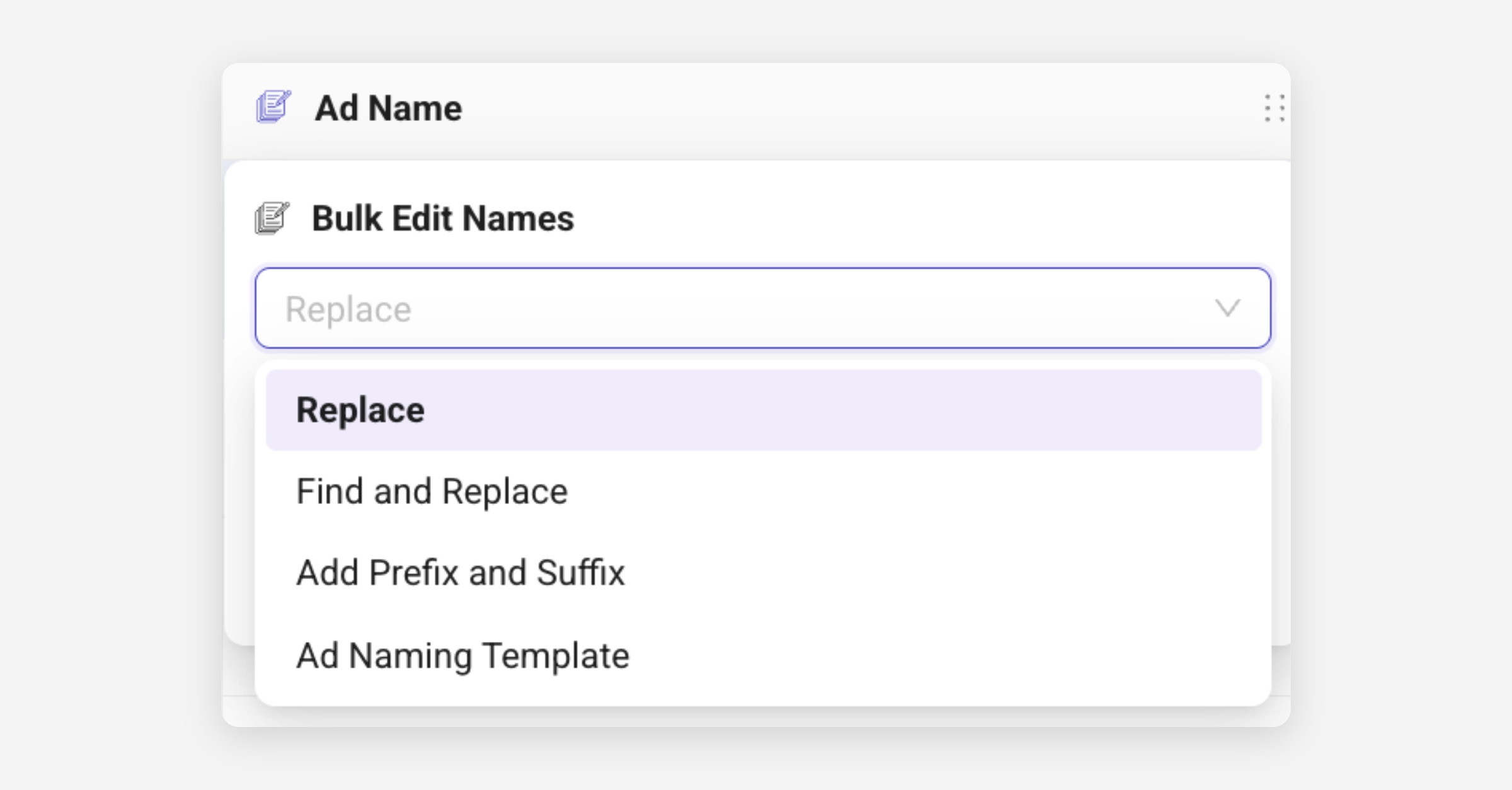
🔤 Replace
Use this when all selected rows should receive the same ad name.
🔍 Find & Replace
Change only part of the name without overwriting everything.
Useful for:
fixing typos
replacing “UGC1” → “UGC2”
switching markets (“UK” → “US”)
Note: This option is case-sensitive.
➕ Add Prefix
Adds text before the current ad name.
Examples:
“BlackFriday_AdName”
“US_AdName”
➖ Add Suffix
Adds text after the current ad name.
Examples:
“AdName_v2”
“AdName_UGC”
“AdName_Promo”
Ad Naming Template: Learn how to use it here
It also remembers your last edit type (e.g. Replace, Add Prefix), so next time you’ll save even more clicks.
Bulk-Edit Panel (Legacy – Soon Deprecated)
Once you have added your creative assets in bulk to the Launch Sheet, you can edit all other fields in bulk using the "Bulk-Edit" option in the top right corner.
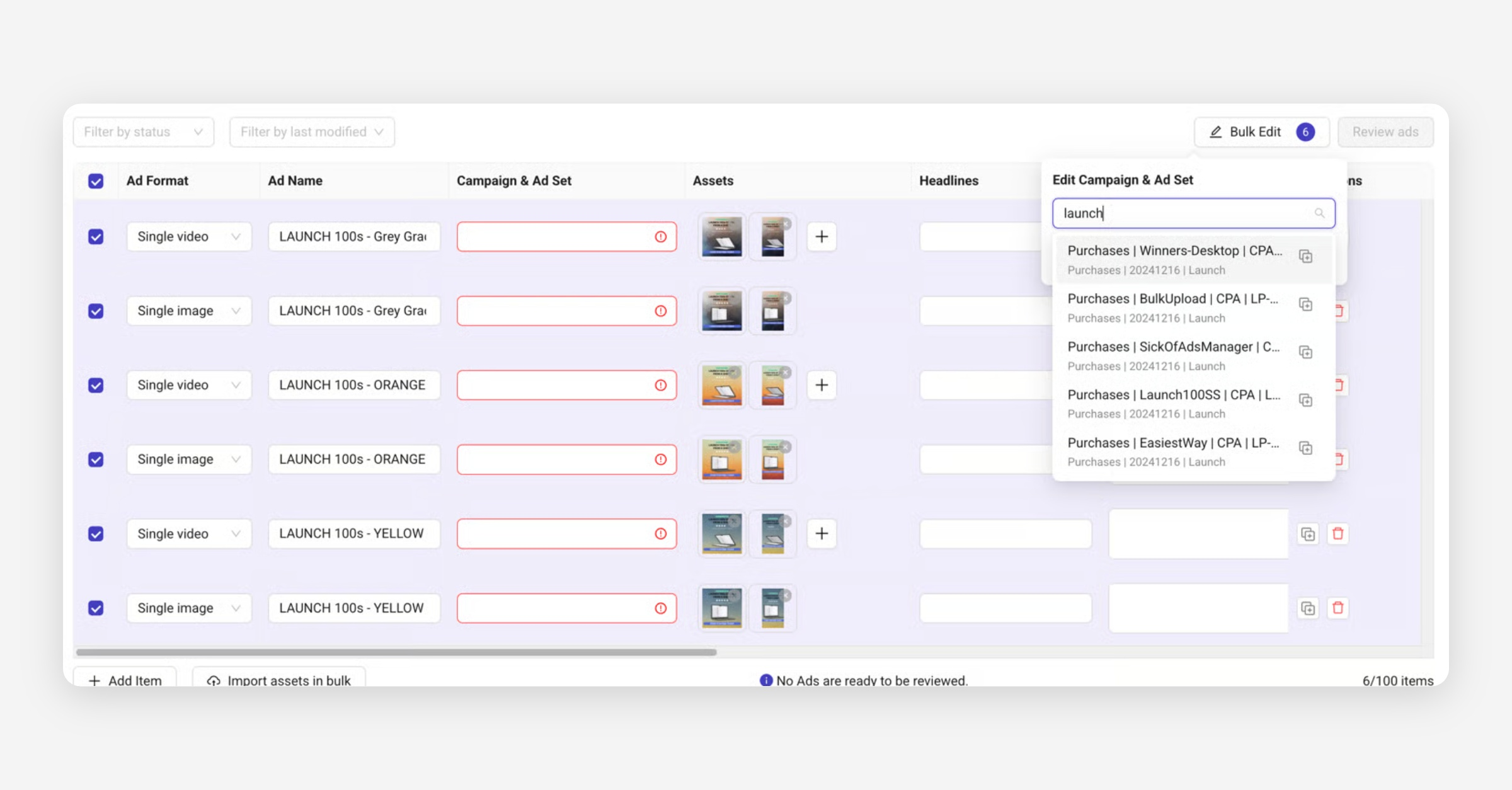
If you already have a value in the first row of the selected items, its value will show up as the default value.
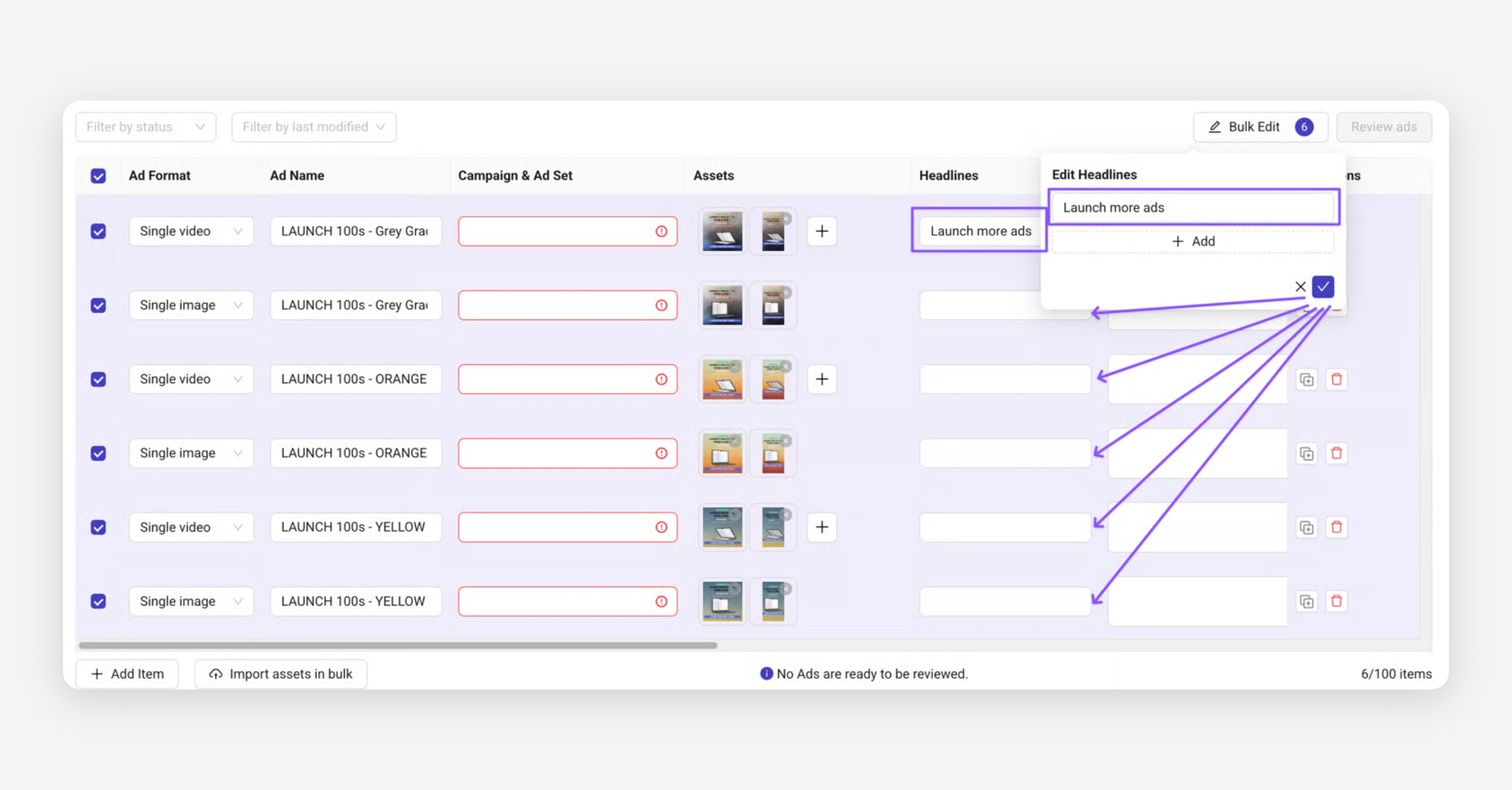
Hitting the ☑️ button adds "Launch more ads" to all other rows as well.