
Bulk Actions for Draft Rows
Manage multiple rows at once with bulk actions. Duplicate or delete drafts, copy rows to other sheets, and export published ads with previews in one click.
Bulk Actions for Draft Rows
These actions are available when selected rows are still in draft or error state.
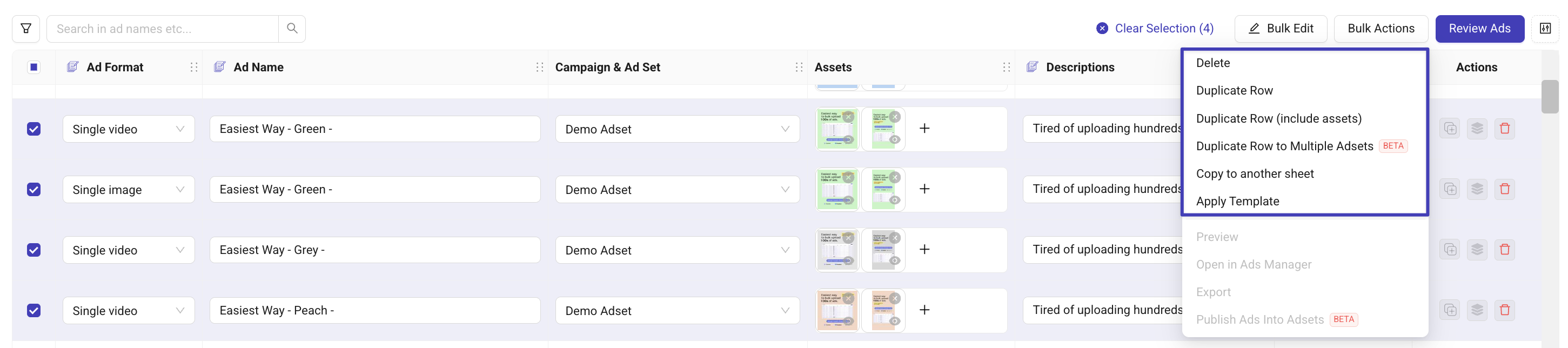
Delete
Removes draft rows from the sheet.
Published ads cannot be deleted to prevent accidental platform removal.
Duplicate Row
Creates a copy of the selected rows without creative assets.
Useful when you want to test different assets with the same copy.
Duplicate Row (include assets)
Creates a full copy of the row including assets AND settings.
This is the fastest way to build multiple versions of the same creative setup.
Duplicate Row to Multiple Adsets (BETA)
This feature extends “Duplicate Row (include assets)” by allowing you to send the same row into multiple adsets at once, without manually changing each row afterward.
It duplicates the selected rows once per target ad set, keeping:
the same creative assets
the same copy & settings
the same structure
Only the ad set changes.
This avoids doing multiple “Duplicate with assets” steps and manually updating each row afterward.
How does it work?
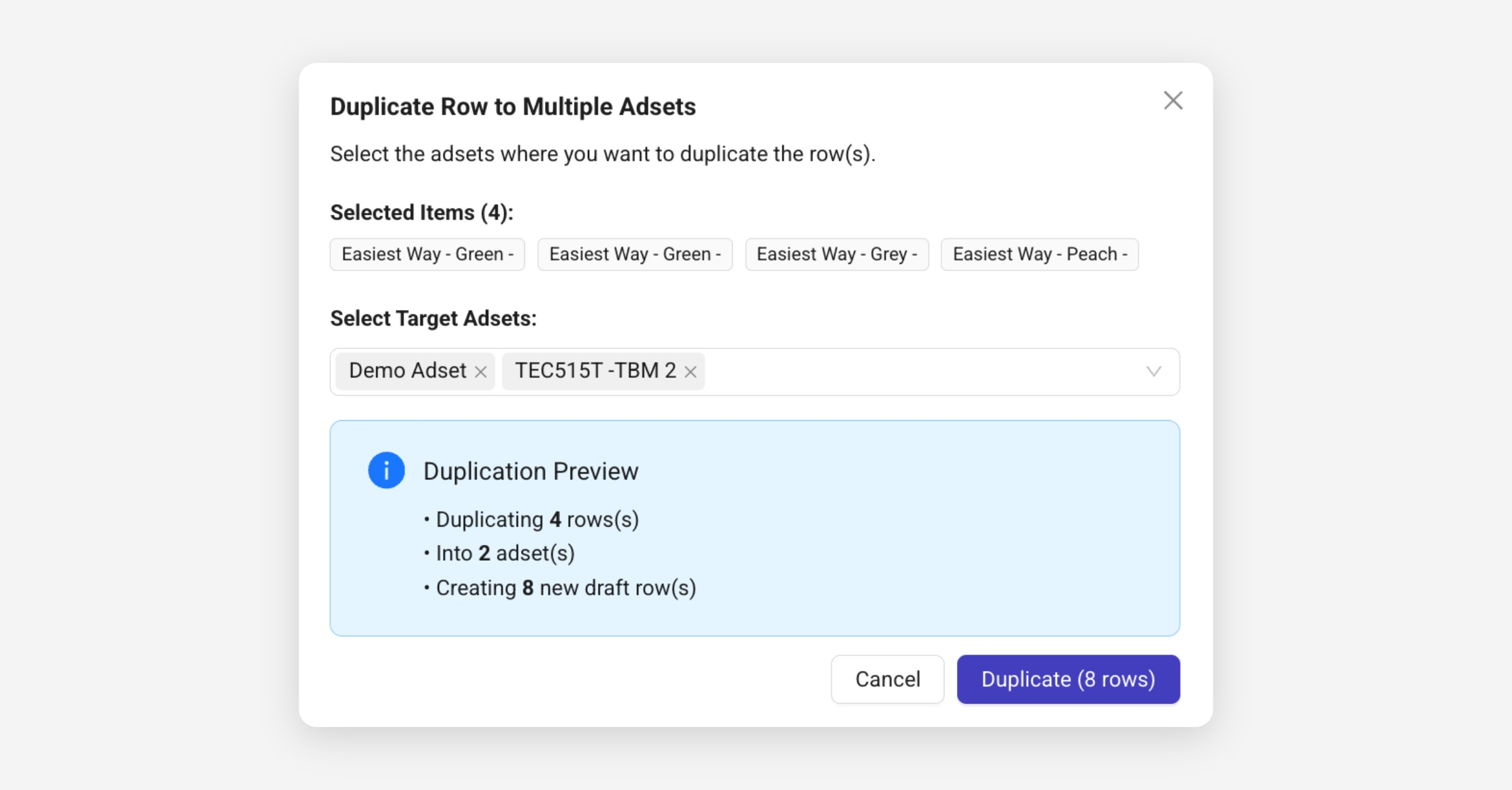
Select draft rows
Bulk Actions → Duplicate Row to Multiple Adsets
Choose one or more target ad sets
Confirm
Kitchn creates new draft rows for each ad set.
If you'd like to have access, you can request Support to join the Beta. 💬
Copy to another sheet
You can copy draft rows from one Launch Sheet to another, useful when working across multiple accounts.
How does it work?
Select rows
Bulk Actions → Copy to another sheet
Choose the destination sheet
Confirm
Apply Template
Apply a stored Ad Naming Template to the selected rows.
Names are generated based on your Custom Columns and sheet fields.
Find more about Ad Templates here ->